

Create the donation form in your organization’s corporate design. Customize it according to your wishes: From the design to the language. This way, your donors stay in your donation world until the donation is completed and benefit from secure payment processing via Spheriq. In our guide, we show you how to create the donation form and integrate it into your WordPress site.
3 simple steps on how to create your donation form for your WordPress website:
Step 1: Create donation form
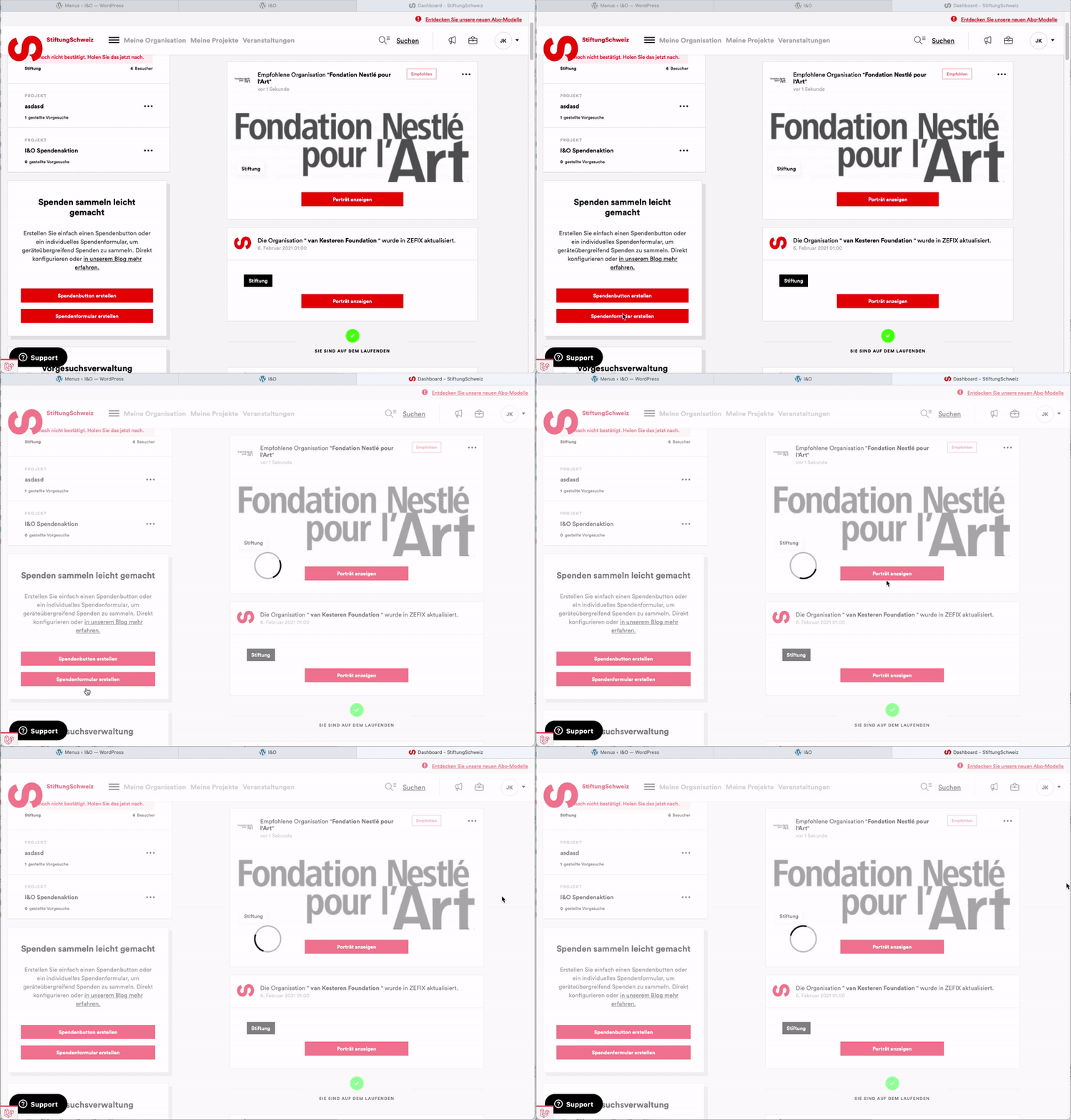
As a Fundraising Premium subscriber, click on “Create donation form” in your dashboard.
Step 2: View form preview
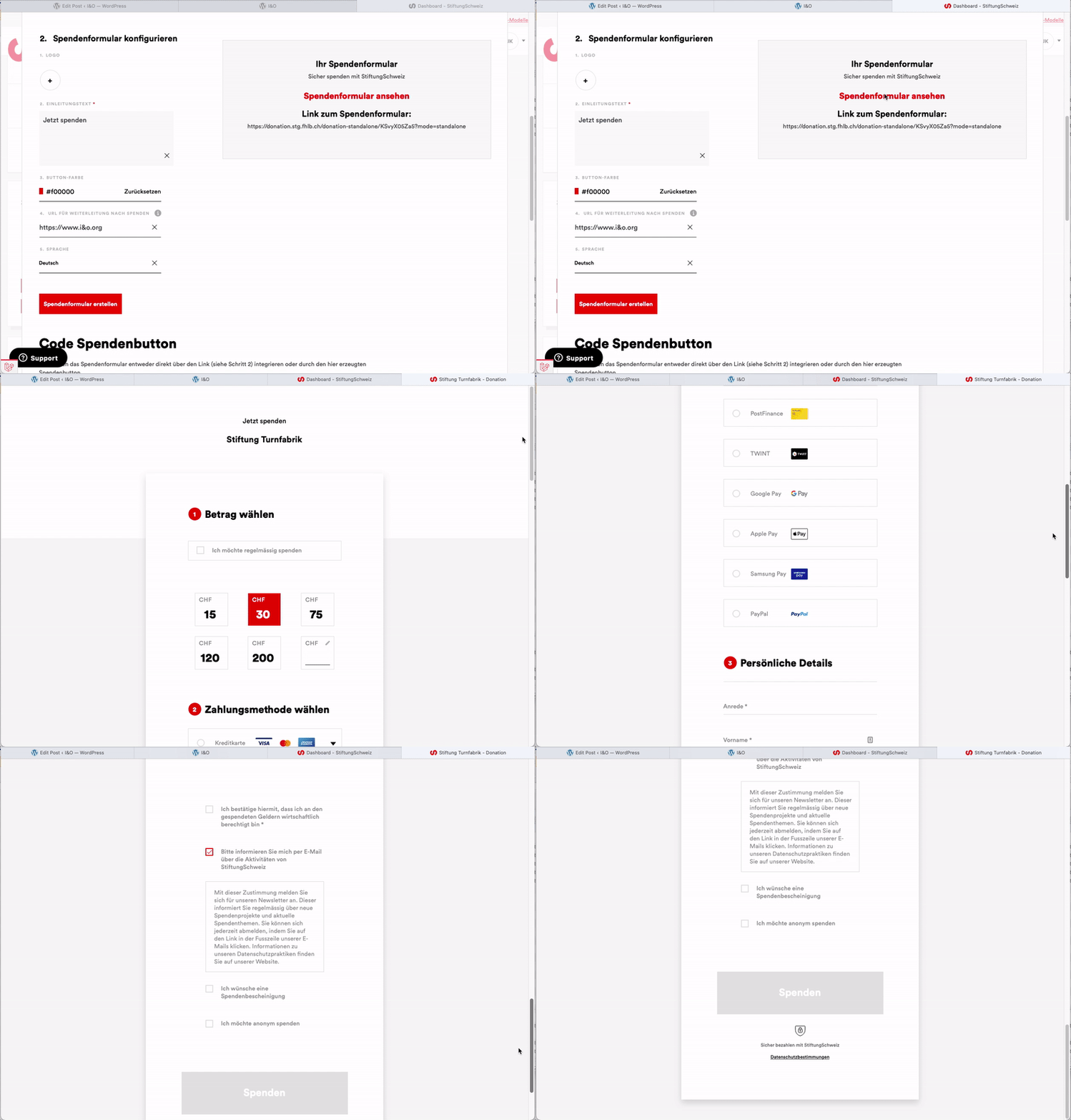
Once you have created your donation form, click on the link to the form preview. If necessary, make further adjustments, save them and click Preview again.
Step 3: Link to the donation form
You have three options for linking to the donation form:
A) Insert donation link in the menu
- Copy the donation link from the donation form mask
- Click on “Design” in the WordPress admin panel and then on “Menus”
- Select the desired menu
- Add the copied donation link to the menu
B) Insert donation button in the article
- Copy the HTML code of the donation form
- Add a “custom HTML” block in the WordPress article editor and integrate the previously copied HTML code of the donation form
C) Add donation button as widget
- Copy the HTML code of the donation form
- Create a new “widget” of the type “individual HTML” in WordPress
- Drag the “widget” into the desired sidebar and then insert the HTML code of the donation form
Note: It is best to save the donation form link and the HTML code of the donation form in a text document if you want to access this information independently of the tool.
Digital fundraising tip:
Link to the donation form from as many places as you like: Via your Spheriq donation button or/and via a text or image link.
Insert donation buttons, texts or images with a link to the donation form, for example:
- on your website
- in your e-mails, e.g. in the signature
- in your newsletter
- in your Facebook or LinkedIn posts
- in a WhatsApp message etc.